
RMM backup features
Back up RMM data.
Keep the history.
Search earlier RMM records, compare versions, and download backups after a change or platform move.
See how it worksNeed earlier backups and daily scheduling? Compare plans.
Search Saved Snapshots
Find earlier records without sorting old CSVs.
Look up device, customer, or configuration details in saved snapshots.
- Search records within a snapshot.
- Check what changed between accessible versions.
- Find records captured before deletion.
Available details depend on your platform and what backed up successfully.
See what your platform can back up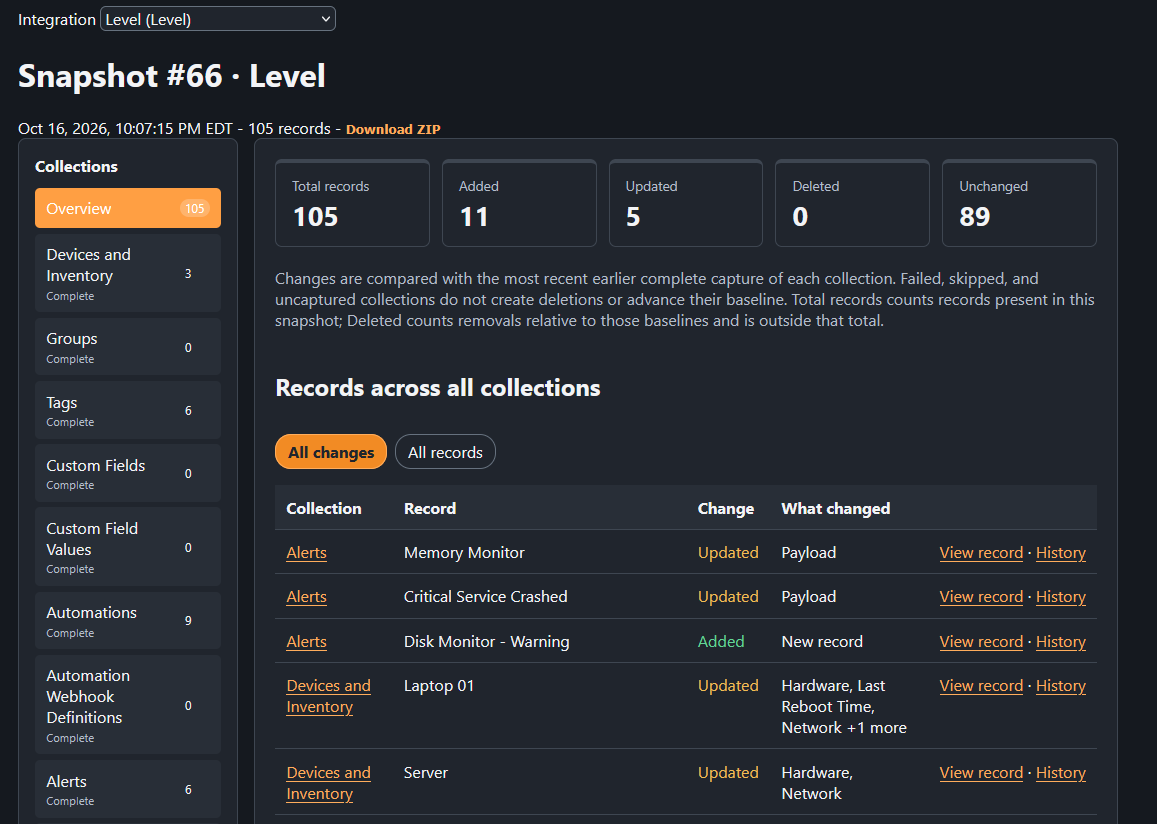
Asset Timeline
Give “it worked yesterday” a starting point.
Search by device or customer, then follow changes across saved backups. Review software, hardware, network, and OS differences where your integration captures them.
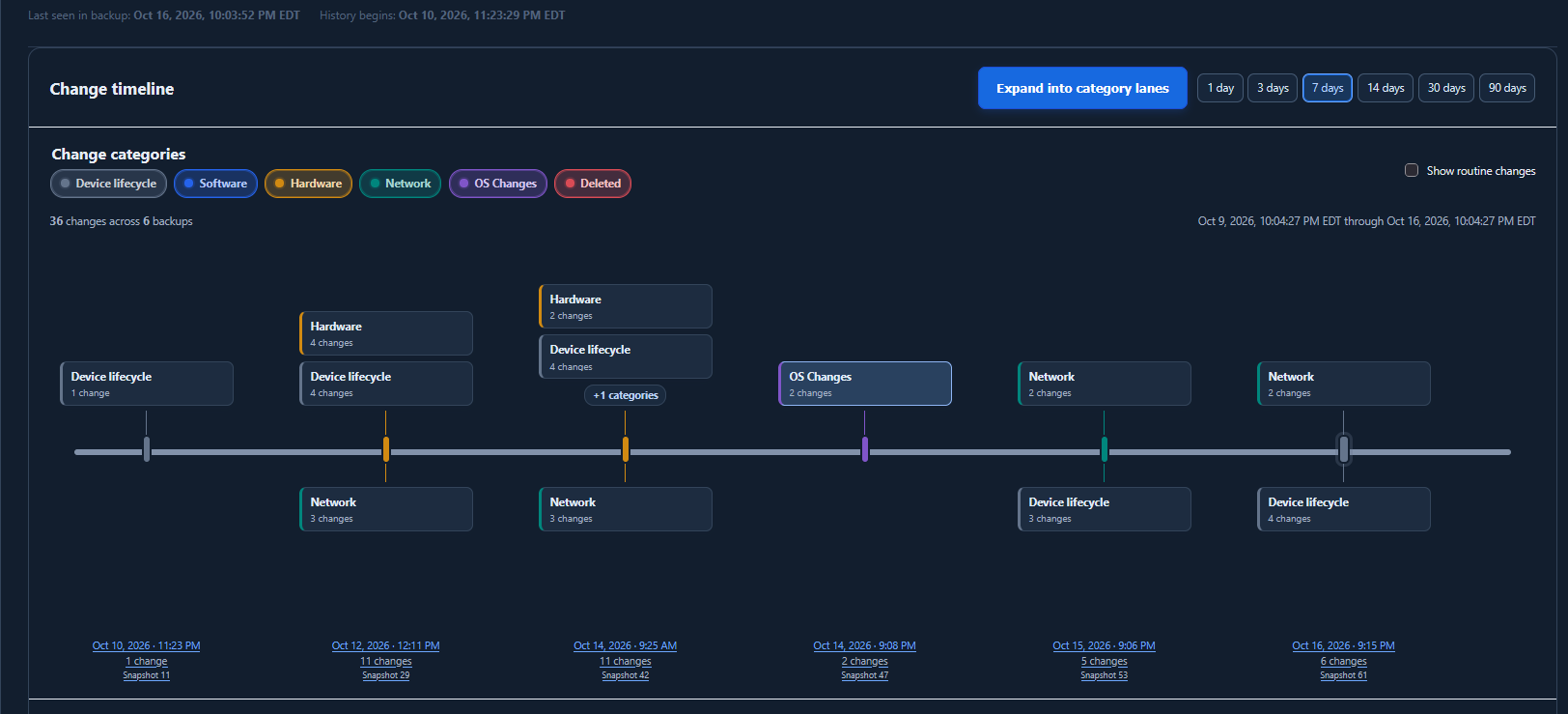
Keep the context. Open the snapshots behind an event.
Read the dates correctly. A backup shows when a difference was detected. Use the source audit history to investigate the exact edit time or who made it.
Comparisons need earlier backups and supported device data. Full Access keeps earlier backups.
Compare saved versions
See the values that changed.
Compare earlier and later values side by side. Open the saved record for more detail.
Review added, updated, and deleted records across successful captures. Original field values stay in your backup.
Comparisons depend on accessible earlier versions. A failed capture is not treated as a deletion.
Read the device history guide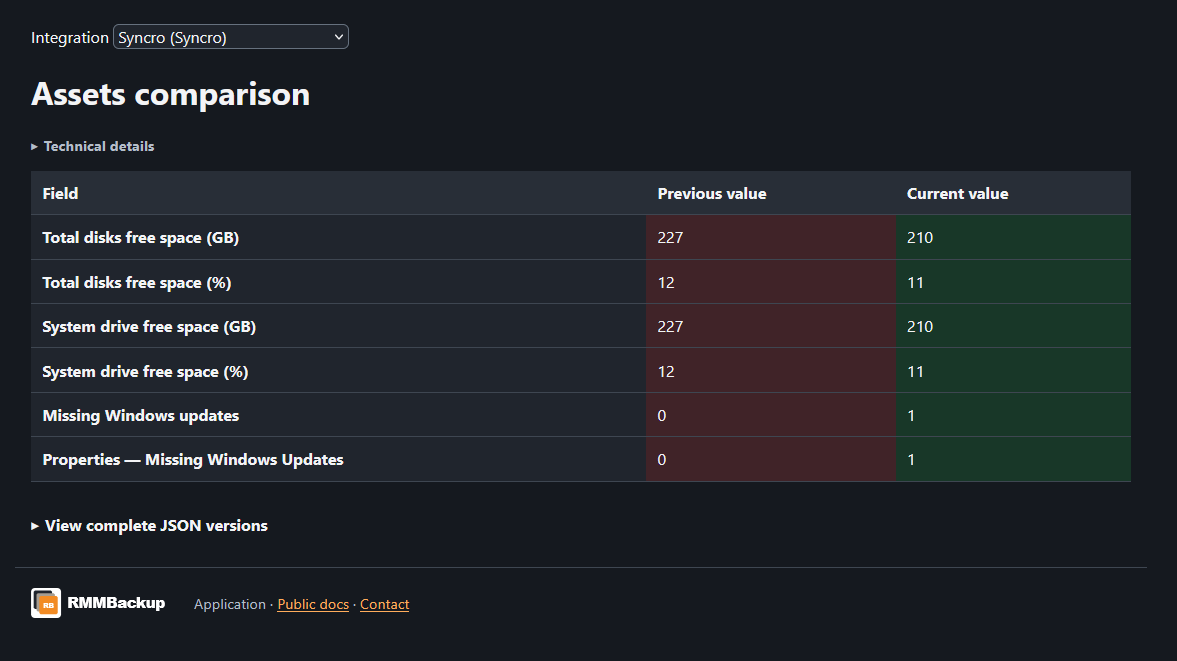
Snapshot ZIP downloads
Download your saved RMM data.
Download a ZIP of saved JSON records and original API responses. Check and store it before ending vendor access or removing or replacing your RMMBackup connection.
When you switch platforms
Keep source records as a reference. Use the destination vendor's tools for imports.
Plan your RMM migrationWhen a device disappears
Review records captured before deletion. Ongoing history needs retained backups and supported deletion tracking.
Find previously captured detailsWhen your RMM is down
Browse already saved records without a live request to your RMM. Capture must happen before the outage; RMMBackup and its storage must remain available.
Prepare for an outageBrowse, compare, and download saved records. The ZIP does not automatically restore data or import it into another platform.
Build history you can use
Check your first backup.
Validate your connection and choose what to save. Review record counts and any failures before relying on the history.
Walk through your first backupStart for free
Make the next client question easier to answer.
Use your work email to get started.
Choose a supported integration and check your first backup.